
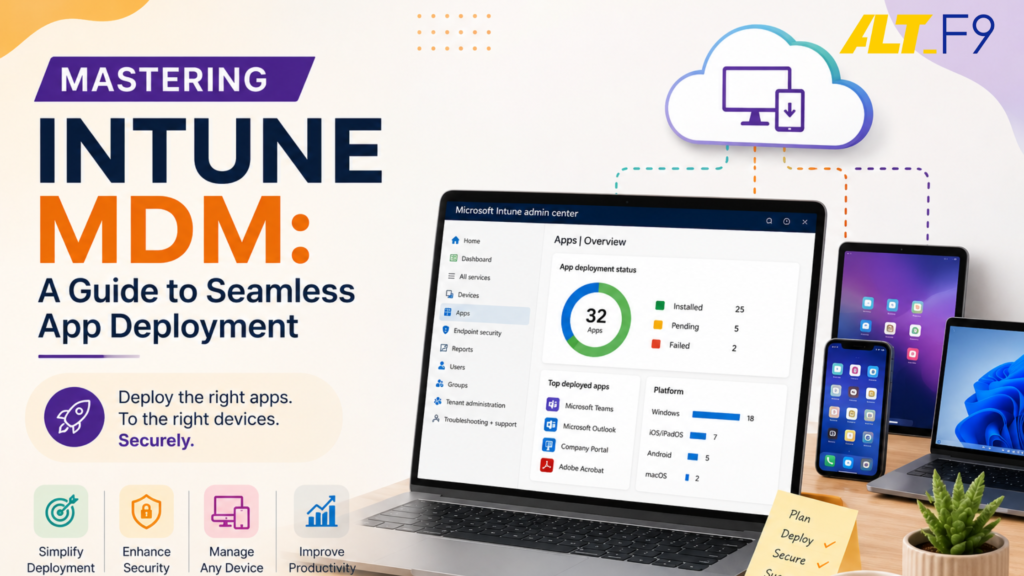
Mastering Intune MDM: A Guide to Seamless App Deployment
Unlocking the power of Mobile Device Management (MDM) can completely transform your organization’s app deployment process. Discover strategic insights for seamless installations that enhance productivity and secure your corporate perimeter today.
Understanding Mobile Device Management (MDM)
Mobile Device Management (MDM) is a pivotal technology in today’s enterprise landscape. It allows organizations to control, secure, and enforce policies on smartphones, tablets, and other endpoints. In a modern hybrid work environment where mobile devices are deeply integrated into business operations, maintaining control over these endpoints is non-negotiable.
The proliferation of mobile devices in the workplace introduces massive challenges in managing and securing corporate data. With an enterprise-grade MDM solution, businesses can seamlessly enforce critical security policies such as strict password requirements, full-device encryption, and remote wipe capabilities. These guardrails protect sensitive data in the event of device loss or theft, assisting companies in complying with regulatory requirements and protecting against data breaches.
Furthermore, MDM solutions centralize how you distribute and manage applications across your entire fleet. This includes pushing critical updates, managing software licenses, and monitoring app usage. By centralizing these complex operational workflows, IT departments significantly reduce their administrative burdens while ensuring that all active user devices remain compliant with corporate policies.
Key Features of Microsoft Intune MDM
Microsoft Intune stands as an industry leader in the endpoint management space, offering a robust set of features designed to streamline device management and application deployment.
- Diverse Ecosystem Support: Intune manages both company-owned and personal devices (Bring Your Own Device, or BYOD). It provides native flexibility across a wide range of operating systems including iOS, Android, macOS, and Windows.
- Comprehensive Application Management: Administrators can deploy, update, and monitor software with absolute ease. The platform flexibly supports various app types, including public store apps, custom line-of-business (LOB) apps, and web links.
- Deep Microsoft 365 Ecosystem Integration: Intune integrates natively with Microsoft Entra ID (formerly Azure Active Directory) and Microsoft 365 apps, creating a unified identity and access management workflow. Learn more about optimizing your cloud workspace through our specialized Microsoft 365 Services.
- Granular Enterprise Security: The platform provides comprehensive security controls, such as conditional access policies, multi-factor authentication (MFA), and advanced threat protection, ensuring that only verified, healthy devices can access corporate resources.
Benefits of Using Intune for App Deployment
Utilizing Microsoft Intune for your application rollout strategy offers numerous operational advantages that can significantly accelerate your organization’s digital transformation.
- Unified Central Dashboard: Intune offers a single pane of glass to view and manage all devices and applications, completely eliminating the complexity of juggling disjointed management tools.
- Automated Deployment Profiles: IT teams can create targeted deployment profiles that automatically install mandatory software based on user roles, departments, or device compliance status. This accelerates employee onboarding and minimizes downtime.
- Automated Patch Management: Pushing automated updates ensures that corporate applications remain continuously patched, heavily reducing the risk of zero-day exploits and security vulnerabilities.
- Seamless Cloud Infrastructure Setup: Operating fully in the cloud means your deployment architecture scales instantly as your business grows. If you are looking to transition your legacy deployment infrastructure to a modern setup, explore our Cloud Migration Services to map out your journey.
Preparing for App Deployment with Intune
Before pushing applications out to your production environment, thorough preparation is critical to guarantee a smooth and successful rollout.
- Define the Deployment Scope: Identify target user groups and device types. Segmenting your users into distinct groups allows you to tailor your software delivery to meet specific departmental needs.
- Establish Clear Compliance Policies: Define explicit criteria for app authorization. Outline device health prerequisites, required OS versions, and specific timelines before making apps available.
- Conduct a Controlled Pilot Test: Before initiating a full-scale corporate rollout, test your deployment profiles on a small pilot group of users. This helps identify network bottlenecks, device configuration issues, or packaging errors early.
Step-by-Step Guide to Deploying Apps via Intune
Deploying enterprise applications efficiently via Intune requires following a structured, procedural blueprint.
1.Add the Application to Intune:Step 1.
Log in to the Microsoft Intune admin center. Navigate to Apps > All apps and click Add. Select the specific app type (e.g., Windows app (Win32), Microsoft 365 Apps, or Store app), upload your package file or specify the app URL, and fill out the required metadata.
2.Configure App Information and Settings:Step 2.
Define the operational properties of the app. This includes assigning a clear name, publisher details, category, and developer notes. For custom line-of-business apps, carefully configure command-line arguments, installation requirements (such as minimum operating system architecture), and detection rules.
3.Assign the App to Target Groups:Step 3.
Navigate to the Assignments section within the app properties. Choose your distribution type: Required (forces silent installation), Available for enrolled devices (displays the app in the Company Portal for optional install), or Uninstall. Map these assignments to your pre-configured Microsoft Entra ID groups.
4.Monitor Deployment and Track Compliance:Step 4.
Once assigned, Intune begins executing the deployment policy. Monitor real-time progress through the built-in monitoring dashboards in the admin center. Track success rates, review installation failures, and check device-specific error codes to ensure uniform coverage.
Best Practices for Managing App Updates and Versions
Maintaining software versions and lifecycle updates is a critical component of holding a secure mobile environment.
- Establish a Predictable Release Schedule: Align your deployment rhythms with major software vendor release cycles to keep security definitions fresh.
- Leverage Targeted Ring Deployments: Always roll out application updates to staging or testing groups prior to upgrading your entire production environment.
- Enforce Strict Version Controls: Utilize Intune app protection and compliance policies to block outdated application versions from accessing corporate data, forcing users to update to the latest secure release.
Troubleshooting Common Issues in App Deployment
Even with perfect planning, enterprise app rollouts can encounter roadblocks. Here is how to handle the most common issues:
- OS Compatibility Failures: If an installation fails repeatedly, verify that the application package aligns perfectly with the target device’s operating system version and hardware architecture.
- Network and Bandwidth Bottlenecks: Large deployment packages can stall over weak network connections. Ensure your network delivery optimization settings are configured properly, or advise remote employees to connect to stable corporate networks during major updates.
- Insufficient Device Storage: App installations will fail silently if a target device lacks local storage space. Implement automated monitoring policies to alert users when their device storage drops below critical levels.
Security and Privacy Considerations
Security sits at the absolute center of modern mobile device management. Microsoft Intune achieves comprehensive endpoint protection through several sophisticated layers:
Conditional Access: This feature continuously evaluates device compliance states. If a device becomes jailbroken, roots its operating system, or turns off encryption, Intune instantly cuts off its access to corporate tools like Outlook, Teams, and SharePoint.
Additionally, App Protection Policies (MAM) allow you to protect corporate data at the application layer without requiring full control over a user’s personal phone. You can easily restrict copy/paste functions between corporate apps and personal apps, encrypt local data containers, and enforce an independent PIN for corporate app access. This level of granular control ensures your communications and data stay safe across both managed and BYOD endpoints.
Future Trends in Endpoint Management
The landscape of MDM is rapidly changing. Looking forward, the integration of artificial intelligence (AI) and machine learning will allow IT infrastructures to predict and remediate deployment errors before they disrupt end-users.
Furthermore, as businesses scale their operations globally, the convergence of traditional MDM with comprehensive Unified Endpoint Management (UEM) models will become standard practice—allowing IT departments to manage laptops, mobile phones, cloud desktops, and IoT devices through a single cohesive architecture. Check out our deep-dive analysis on the AltF9 Technology Blog to stay updated on emerging enterprise infrastructure trends.
Frequently Asked Questions (FAQs)
What is the difference between MDM and MAM in Microsoft Intune?
MDM (Mobile Device Management) focuses on full device control, allowing administrators to configure settings, hardware restrictions, and perform full factory wipes on company-owned hardware. MAM (Mobile Application Management) focuses strictly on securing data within specific applications (like Microsoft Outlook) without managing or altering the user’s personal device settings, making it perfect for BYOD policies.
Can Microsoft Intune deploy custom line-of-business (LOB) apps?
Yes. Microsoft Intune allows administrators to package and securely deploy custom, in-house line-of-business applications across multiple platforms, including Windows (Win32/.msi/.intunewin), iOS (.ipa), and Android (.apk).
How long does it take for an app deployment policy to take effect on a device?
Once a policy is assigned in the Intune admin center, the deployment command is sent immediately. The actual installation time depends on when the target device syncs with the Intune service (typically every 8 hours by default, or immediately if triggered manually via the device’s Company Portal app) and the speed of the network connection.
Does Microsoft Intune support multi-platform environments?
Yes, Intune is entirely platform-agnostic and provides robust management tools across Windows, macOS, iOS/iPadOS, Android, and Linux endpoints.
Optimize Your Corporate Endpoint Management with AltF9
Setting up, configuring, and maintaining Microsoft Intune MDM policies requires deep technical expertise to ensure optimal performance without disrupting your daily workflows. At AltF9 Technology Solutions, we specialize in building highly secure, automated, and streamlined cloud architectures for growing enterprises.
Whether you need assistance migrating your legacy infrastructure to the cloud, managing corporate licenses, or implementing bulletproof device compliance policies, our certified technology consultants are here to help.
- Company Name: AltF9 Technology Solutions Pvt Ltd
- Expertise: Cloud Migration, IT Infrastructure Management, Microsoft 365 Solutions, and 3CX Phone Systems
- Global Delivery: Over 150 successful projects delivered across 6 countries (including India, the USA, the UK, and the UAE).
- Phone: +91 8056005901
- Email: Contact@altf9.tech
- Website: https://altf9.tech
Ready to secure your mobile workforce?