
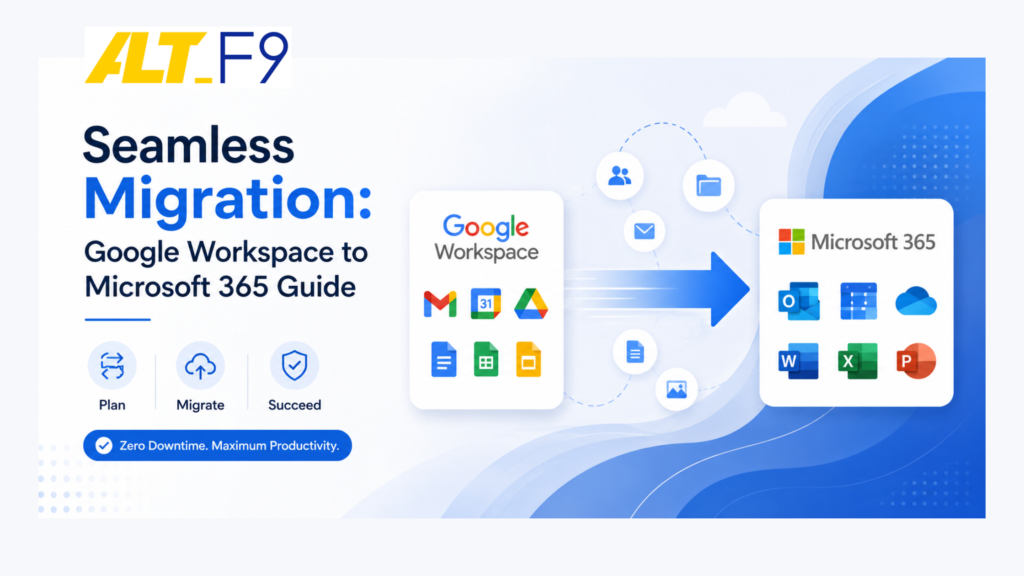
Seamless Migration: Google Workspace to Microsoft 365 Guide
Migrating from Google Workspace to Microsoft 365 can be seamless and efficient. This comprehensive guide simplifies the process, ensuring a smooth transition for your organization.
Why Organizations Migrate to Microsoft 365
Organizations today are continually evolving, driving the need to adapt to tools that enhance productivity and collaboration. Migrating from Google Workspace (formerly G Suite) to Microsoft 365 is a strategic decision for companies seeking to leverage Microsoft’s robust ecosystem.
While Google Workspace is an excellent, browser-first platform, growing businesses often hit its limitations. The primary catalysts for making the switch include:
- Deep Office Integration: Seamless, native compatibility for companies that rely heavily on advanced desktop features in Word, Excel, and PowerPoint.
- Unified Communications: A single platform combining enterprise email (Outlook) with robust team collaboration and video conferencing (Teams), reducing the cost of third-party add-ons. Discover how to streamline your operations with tailored Unified Communications Solutions.
- Advanced Compliance: Enterprise-grade data protection, eDiscovery, and retention policies critical for healthcare, finance, and government sectors.
Key Differences: Google Workspace vs. Microsoft 365
Understanding how these platforms diverge helps you anticipate user friction and technical architecture differences.
| Feature | Google Workspace | Microsoft 365 |
|---|---|---|
| App Delivery | 100% Cloud/Browser-based | Hybrid (Robust Desktop Apps + Web Versions) |
| Email & Calendar | Gmail & Google Calendar (Simplicity focused) | Outlook (Advanced rules, complex scheduling) |
| Storage Ecosystem | Google Drive (Shared Drives) | OneDrive for Business & SharePoint Online |
| Security Architecture | Google Cloud Security | Microsoft Defender & Advanced Compliance Center |
Phase 1: Preparing for Migration
A successful migration relies entirely on thorough discovery and a clear roadmap. Do not rush into moving data without checking off these foundational steps. For deeper strategic analysis regarding cloud deployment architecture, read our latest expert guides on the AltF9 Insights Blog.
1. Conduct a Technical Inventory
Assess your current Google Workspace tenant. You need an exact count of:
- Active user mailboxes and total data volume.
- Shared Drives and individual Google Drive storage spaces.
- Secondary domains, aliases, and critical distribution groups.
2. Formulate a Communication Plan
User resistance is the leading cause of “failed” migrations. Announce the timeline early. Detail what is changing, why the company is making the move, and what employees need to do on day one.
Phase 2: The Core Migration Process
Moving your data requires a structured, sequential approach to prevent data loss or service downtime. Leveraging a dedicated partner can safeguard your shift; learn more about structuring your transition smoothly through specialized Cloud Computing Support.
- Set Up the Microsoft 365 Tenant: Step 1: Infrastructure.
Purchase your licenses, verify your custom domain in the Microsoft 365 Admin Center, and provision your user accounts. Ensure every Google user has a matching, licensed mailbox waiting for them in Microsoft 365. - Configure the Migration Architecture: Step 2: Linking Environments.
Utilize the Exchange Admin Center (EAC) to establish a migration endpoint. You will need to configure Google Cloud Platform (GCP) API credentials to grant Microsoft permission to access your Google Workspace data securely. - Execute a Core Data Sync: Step 3: Background Transfer.
Run a “pre-stage” migration batch. This copies older emails, calendar entries, and files in the background while your employees continue working in Google Workspace. - The Final Cutover & MX Record Update: Step 4: Going Live.
During a low-traffic window (like a weekend), route your live mail flow to Microsoft by changing your domain’s MX (Mail Exchanger) records at your DNS host. Run a final “delta sync” to catch any emails that arrived during the switch.
Transferring Content, Contacts, and Calendars
Files and Documents
Moving from Google Drive to OneDrive or SharePoint requires specialized tools to preserve permissions.
Recommended Tool: Use the official SharePoint Migration Tool (SPMT) or Microsoft’s native Mover.io platform. These tools translate Google Docs, Sheets, and Slides into standard Word, Excel, and PowerPoint formats automatically during transit.
Contacts and Calendars
While the Exchange Admin Center handles calendar syncs for native migrations, double-check your resource calendars (like conference rooms). Ensure recurring events and reminders copy over correctly so employee schedules remain uninterrupted. If you find your team needing customized architectural assistance during this phase, exploring end-to-end cloud transformations via dedicated Microsoft 365 Licensing, Migration & Support Services can help map your expansion safely.
Ensuring Data Integrity & Security
To prevent data corruption or accidental omissions during the cloud-to-cloud transfer, implement these safety nets:
- Perform an Independent Backup: Never rely solely on the migration tools as your safety net. Keep your Google Workspace tenant active and backed up until the migration is fully verified.
- Audit the Error Logs: Review the migration batch reports in Microsoft 365. Identify any skipped files (often caused by character limits or invalid file types) and remediate them manually.
- Validate Permissions: Check that private company folders didn’t accidentally become public or lose their restricted access during the SharePoint mapping phase.
Overcoming Common Post-Migration Challenges
Even with a flawless technical execution, human and configuration bottlenecks can occur. Use these strategies to overcome them:
- Challenge: User Resistance & Confusion
- Solution: Provide targeted training. Focus heavily on how to navigate Microsoft Teams and Outlook, as these are the tools employees interact with most frequently. Create a dedicated internal chat room for peer-to-peer help.
- Challenge: Missing Email Signatures and Rules
- Solution: Local Outlook settings, inbox sorting rules, and custom email signatures do not migrate automatically. Provide employees with a quick 5-minute checklist to recreate these on their first day.
- Challenge: Autocomplete and Cached Address Issues
- Solution: When users type an internal email address, Outlook might try to use old routing data. Teach users how to clear their Outlook autocomplete cache if they receive delivery failure notices for internal team members.
Frequently Asked Questions
Will there be any email downtime during the migration?
No. If you use a pre-stage migration strategy, your data is copied over in the background while users work normally. The actual switch occurs when you update your DNS MX records, which can be timed over a weekend or low-traffic window to eliminate disruption.
What happens to shared Google Drives when moving to Microsoft 365?
Shared Drives are typically migrated over to SharePoint Online document libraries. Individual user storage from Google Drive maps directly to their personal OneDrive for Business account.
Do Google Docs and Sheets convert automatically to Word and Excel?
Yes. Official migration tools like Microsoft’s SharePoint Migration Tool (SPMT) convert Google proprietary formats (Docs, Sheets, Slides) into default Microsoft Office open XML formats (.docx, .xlsx, .pptx) seamlessly during the transfer.
Are labels in Gmail preserved as folders in Outlook?
Gmail labels are converted into Outlook folders. If a single email in Google Workspace has multiple labels applied to it, the migration tool will generally place a duplicate copy of that email into each corresponding Outlook folder.
Conclusion: Thriving in Your New Environment
Migrating to Microsoft 365 opens up powerful automation and collaboration opportunities via tools like Power Automate and advanced security settings. By approaching the transition with clear communication, systematic data mapping, and expert post-migration support, your organization can minimize disruption and maximize productivity from day one.
Ready for a Hassle-Free Migration?
Planning an enterprise-wide platform switch requires precision to avoid downtime. At AltF9 Technology Solutions Pvt Ltd, we specialize in secure, cloud-to-cloud migrations tailored to your unique workflows.
Let our certified experts manage your transition to Microsoft 365 seamlessly.
- Email: Contact@altf9.tech
- Website: https://altf9.tech
- Contact Number: +91 8056005901