
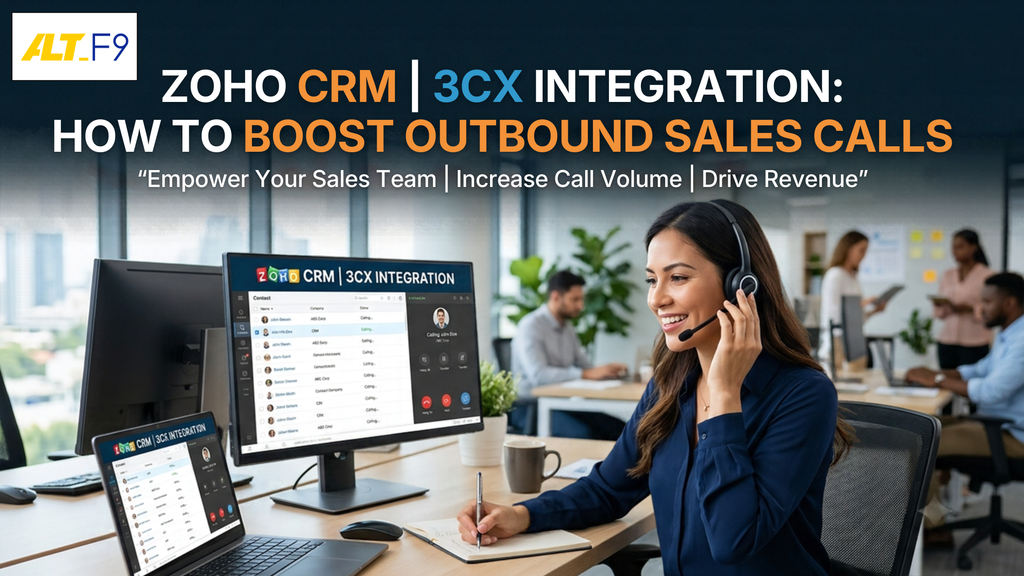
Your sales team makes dozens of calls a day. Yet each call often means switching screens, typing numbers and logging notes by hand. A Zoho CRM 3CX integration removes that friction. Reps call customers in one click, see the full customer record as the call connects, and every call is logged in Zoho CRM automatically.
In this guide, you’ll learn what the integration does, how it lifts outbound sales and how to set up your Zoho CRM 3CX integration step by step. We also cover the Zoho CRM and 3CX features worth using, the metrics to track, and fixes for the most common issues.
What Is Zoho CRM 3CX Integration?
Zoho CRM 3CX integration connects your 3CX phone system to your Zoho CRM account, so calls and customer data flow between the two. It is built into 3CX as a server-side CRM integration, so you don’t need a third-party connector.
Once connected, your team gets five core features, as listed in the official 3CX Zoho integration guide:
- Caller ID to contact name: inbound calls trigger a Zoho CRM lookup, so reps see who is calling.
- Contact lookup: reps can search Zoho contacts by name, number or email from the 3CX web client.
- Call and chat journaling: calls and chats are logged on the Zoho contact record automatically.
- Contact creation: reps can add a new Zoho lead or contact when an unknown number calls.
- Click-to-call: reps start calls from Zoho CRM through the 3CX Click2Call extension for Chrome and Edge.
One requirement matters before you plan anything. CRM integration comes with the 3CX PRO and ENT/AI editions, but not with 3CX Basic or the Free edition.
Benefits of Integrating Zoho CRM with 3CX
When you integrate Zoho CRM with 3CX, your sales team works from one connected system instead of two separate ones. Here are the three biggest gains.
Instant Customer Context on Every Call
Reps see the customer’s record the moment a call connects. As a result, they know past purchases, open deals and earlier conversations before they say hello. That context lets them personalise every call, which builds stronger relationships and raises close rates.
Less Admin, More Selling
The integration logs each call automatically, including its direction, duration and outcome. Reps no longer copy notes between systems, and follow-ups stay attached to the right record. The time saved goes back into prospecting and nurturing leads, so productivity and sales performance both rise.
Better Reporting and Sales Insights
Because 3CX call data lands in Zoho CRM, you can report on calls alongside deals and contacts. For example, you can compare call outcomes with conversion rates and see where deals stall. These insights help you remove bottlenecks and make data-driven decisions that drive growth.
Why Outbound Calls Still Drive Sales
Outbound calls remain a cornerstone of effective sales. Emails and social messages are easy to ignore, but a phone call invites a real-time answer. Moreover, 3CX outbound calls placed from Zoho CRM are faster to make and easier to track.
Faster Responses Than Email
A live call lets reps answer questions and handle objections on the spot. Consequently, prospects move through the sales funnel faster.
A Personal Connection That Builds Trust
A voice carries tone and mood that text cannot. Reps can hear hesitation, adjust their pitch and address specific pain points. This human touch builds the trust that turns leads into loyal clients.
First-Hand Customer Feedback
Every conversation reveals customer needs, preferences and challenges. When reps record these insights in Zoho CRM, your team can refine its sales strategy and shape offerings around real demand. Over time, this keeps you ahead of competitors.
How to Set Up Zoho CRM 3CX Integration (Step by Step)
The setup is straightforward once you have admin access to both systems. The steps below follow the official 3CX guide for 3CX Version 20.
Before you start, make sure you have:
- A 3CX PRO or ENT/AI licence.
- Admin access to the 3CX Admin Console and to Zoho CRM.
- The Projects module enabled in Zoho CRM, with at least one project created (3CX lists this as a prerequisite).
- The same email address on each 3CX extension and its matching Zoho CRM user.
Step 1: Create a Server-Based Client in Zoho
- Sign in to the Zoho API Console and click Add Client. If your Zoho account is hosted in India or Europe, use that region’s domain (zoho.in or zoho.eu).
- Choose Server-based Applications as the client type.
- Enter a client name, such as “3CX Integration”.
- In Homepage URL, enter your 3CX Admin Console URL, for example
https://my-pbx.example.com. - In Authorized Redirect URIs, enter the same URL with
/api/oauth2crmadded, for examplehttps://my-pbx.example.com/api/oauth2crm. - Click Create, then copy the Client ID and Client Secret.
Step 2: Connect Zoho in the 3CX Admin Console
- In the 3CX Admin Console, go to Integrations > CRM and select Zoho from the list.
- Enter the Accounts Server URL and Zoho CRM URL for your region. Indian Zoho accounts use
https://accounts.zoho.inandhttps://crm.zoho.in. - Paste the Client ID and Client Secret from Step 1.
- Click Save, then Authorize.
- In the new browser tab, sign in with your normal Zoho user account (not a developer account) and click Accept.
Step 3: Turn On 3CX Call Journaling
3CX call journaling writes every external call to Zoho CRM as a call record.
- Tick Enable Call Journaling.
- Set the call subject and the descriptions for answered inbound, missed, answered outbound and unanswered outbound calls. You can insert variables such as [Number].
- Optionally, tick Enable Chat Journaling and choose whether chats are saved as Tasks or Calls.
Step 4: Match Phone Numbers in E.164 Format
Zoho only matches whole numbers, so the caller ID must match the CRM entry exactly. Therefore:
- Store numbers in Zoho CRM in E.164 format, such as +914412345678.
- Make sure your SIP trunk sends caller ID in E.164 format, or use Caller ID Reformatting in 3CX.
- Go to Admin > System > Phonebook > Options, set the matching strategy to Match exactly and click OK.
Step 5: Enable Contact Creation and Click-to-Call
- Tick Allow contact creation directly to your CRM using 3CX Web Client, then choose Lead or Contact.
- Ask each rep to install the 3CX Click2Call browser extension for Chrome or Edge.
- In the 3CX web client, each user opens Settings > Integration and selects the server-side integration to get contact pop-ups.
Step 6: Test with a Few Outbound Calls
Make three or four outbound test calls to known contacts. Then check that each call appears on the right Zoho record with the correct subject, duration and description. Once everything logs correctly, roll the integration out to the whole team and review it regularly.
Prefer to skip the setup? AltF9’s 3CX team can configure, test and document your Zoho CRM 3CX integration for you. Book a Free Consultation.
Zoho CRM Features That Power Outbound Calling
Zoho CRM includes several features that make outbound calling more organised.
Automatic Call Logging
Each call is recorded with its date, time, duration and outcome. Reps keep accurate records without extra effort, which makes follow-ups and activity tracking much easier.
Zoho CRM Click-to-Call
With click-to-call, reps start a call by clicking a phone number in Zoho CRM. There’s no manual dialling, so they save time and avoid misdialled numbers. With 3CX, the call runs through your business phone system while the customer record stays open on screen.
Call Reminders and Follow-Up Scheduling
Reps can schedule calls for a set date and time and get reminders before they’re due. As a result, no follow-up slips through the cracks, and every prospect gets timely, personal attention.
3CX Features That Improve Sales Calls
3CX adds business-grade calling features on top of the CRM connection.
Smart Call Routing
Call queues, ring groups and IVR menus send each call to the right person based on rules you set. Customers reach the best-suited rep faster, which improves their experience.
Call Recording
3CX can record calls for quality assurance, training and compliance. Managers can review recordings, coach reps on specific moments and settle disputes with a clear reference. Before you record, check the consent rules that apply in your region.
Call Reports and Live Wallboards
3CX reports show call volumes, durations and outcomes, while live queue wallboards let managers track activity as it happens. Combined with the call records in Zoho CRM, this gives you a complete view of sales activity.
Best Practices for Outbound Calling with Zoho CRM and 3CX
Tools only help when your team uses them well. Follow these three practices to get the best results.
Train Your Team on Both Platforms
Make sure every rep knows how to click-to-call, log outcomes and schedule follow-ups. Short, hands-on sessions help them use both tools to their full potential.
Keep Your CRM Data Clean
Accurate data gives reps the right details during every call. Update records regularly, merge duplicates and store numbers in E.164 format. Also, segment your contacts so outbound calls reach the right audience.
Use Flexible Call Scripts
A good script lists key talking points, discovery questions and answers to common objections. However, it should guide the conversation, not control it. Encourage reps to practise their scripts and adapt them to each call, which builds confidence and keeps calls professional.
Key Sales Call Metrics to Track
Once your Zoho CRM 3CX integration is live, track these three sales call metrics to measure how well your outbound calling works.
| Metric | What it measures | What it tells you |
|---|---|---|
| Call conversion rate | Share of outbound calls that lead to a meeting, sale or commitment | How well reps move prospects forward |
| Call volume | Outbound calls per rep in a set period | Whether activity is consistent and sufficient |
| Average call duration | Average length of outbound calls | How engaged prospects are; very short calls may signal script or skill gaps |
Review call volume alongside conversion rate. High volume with low conversion usually points to targeting or script problems rather than effort.
Troubleshooting Zoho CRM 3CX Integration Issues
Most problems come from authorisation, number matching or network settings. Here’s how to fix the common ones.
Authorisation Errors
These errors usually mean the credentials or URLs don’t match. First, check the Client ID and Client Secret. Next, confirm the redirect URI ends in /api/oauth2crm and matches your 3CX Admin Console URL exactly. Finally, make sure the Accounts Server URL and Zoho CRM URL match your Zoho region, then click Authorize again.
Calls Not Logging in Zoho CRM
If calls don’t appear in Zoho CRM, check three settings. The 3CX extension email must match a Zoho user email exactly. Call journaling must be switched on. And the Projects module must be enabled in Zoho CRM with at least one project. Then make a test call to confirm the fix.
Contacts Not Matching or No Caller Pop-Up
Zoho only matches complete numbers. So if pop-ups fail, compare the caller ID with the number stored in Zoho and confirm both use E.164. Also check that the phonebook matching strategy is set to Match exactly and that the browser isn’t blocking pop-ups.
Slow Sync or Performance Problems
Delays usually come from server load or network issues. Check bandwidth and connectivity, and make sure your 3CX server has enough resources. In addition, keep 3CX updated to the latest version for fixes and security improvements.
What’s Next for CRM and Phone System Integration
The link between CRM and communication tools will keep getting tighter. Artificial intelligence is already changing how sales teams work; 3CX, for instance, now offers AI transcription and AI agents. Predictive analytics, automated routing and voice recognition will give reps deeper insights and take routine tasks off their plate.
Omnichannel communication is the other big shift. 3CX already brings voice, live chat, WhatsApp and SMS into one platform, and chat journaling can log those conversations in Zoho CRM. As a result, sales teams can engage prospects on any channel from one connected system.
In short, integrating Zoho CRM with 3CX is a strategic move that makes every sales call count. By following best practices, tracking key metrics and staying ahead of these trends, your team can take its outbound sales to new heights.
Get Expert Help with Your Zoho CRM 3CX Integration
AltF9 Technology Solutions is a 3CX partner based in Chennai, supporting more than 50 clients across six countries. We help you choose the right 3CX edition, set up your Zoho CRM 3CX integration and train your team, so you see results from day one.
We can also manage your wider unified communication solutions, from SIP trunks to IP phones, backed by 24/7 remote IT support. New to 3CX? Start with our guide to 3CX VoIP for small businesses in India.
Ready to turn every sales call into a tracked opportunity? Book a Free Consultation with AltF9’s 3CX team today.
Prefer to talk now? Reach our 3CX team directly:
- Phone: +91 8056005901
- Email: Contact@altf9.tech
Frequently Asked Questions
Can 3CX integrate with Zoho CRM?
Yes. 3CX has a built-in Zoho CRM integration that you configure in the 3CX Admin Console under Integrations > CRM. It supports caller ID lookup, call and chat journaling, contact creation and click-to-call.
Which 3CX edition do I need for Zoho CRM integration?
You need the 3CX PRO or ENT/AI edition. CRM integrations are not included in the 3CX Basic or Free editions.
Does Zoho CRM 3CX integration work for outbound calls?
Yes. It works for both inbound and outbound calls. You can set separate journal descriptions for answered and unanswered outbound calls, so every attempt is recorded.
How do I click-to-call from Zoho CRM with 3CX?
Install the 3CX Click2Call browser extension for Google Chrome or Microsoft Edge. Phone numbers in Zoho CRM then become clickable, and calls go through your 3CX extension.
Why are my 3CX calls not showing in Zoho CRM?
The most common causes are a mismatch between the 3CX extension email and the Zoho user email, call journaling being switched off, or numbers not stored in E.164 format. Fix these, then run a test call.
Can AltF9 set up Zoho CRM 3CX integration for my business?
Yes. AltF9’s 3CX team handles licensing, setup, number formatting, testing and user training for businesses in Chennai and across India. Book a Free Consultation to get started.