
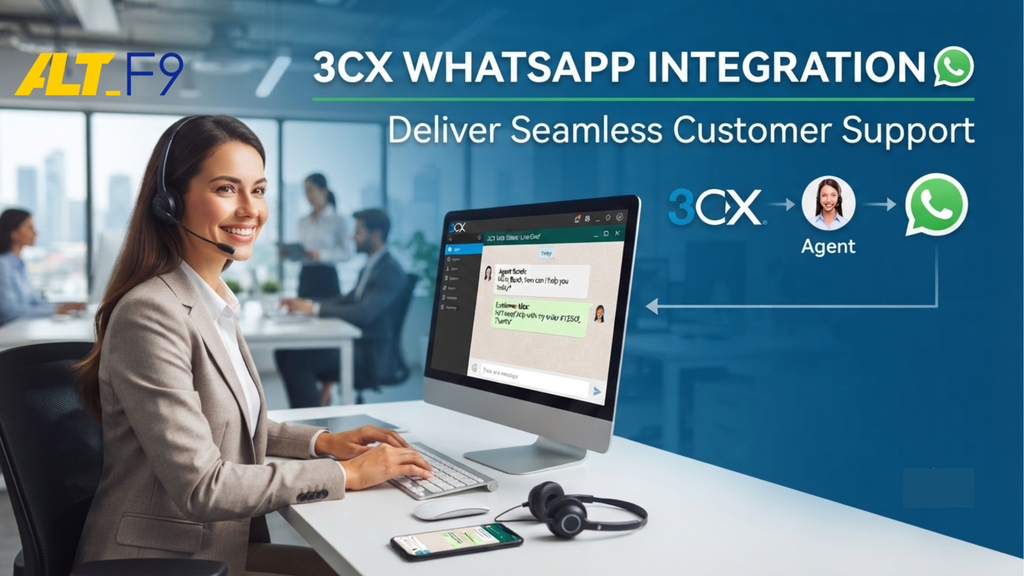
Your customers already live on WhatsApp. In India alone, more than 500 million people use it, according to Meta. Yet many support teams still manage WhatsApp on a separate phone, away from their calls and live chat. A 3CX WhatsApp integration fixes that. It brings WhatsApp Business API messages into your 3CX phone system, so agents can answer every channel from one place.
In this guide, you’ll learn how the integration works, what it costs and how to set up your 3CX WhatsApp integration step by step. We also cover common challenges, real use cases, best practices and the metrics that show it’s working.
What Is 3CX WhatsApp Integration?
3CX WhatsApp integration connects your WhatsApp Business number to your 3CX phone system through Meta’s WhatsApp Business Platform, also known as the WhatsApp Business API. Incoming WhatsApp messages land in the same 3CX chat panel as website live chat, SMS and Facebook messages, as described in the official 3CX WhatsApp guide. Your team replies from the 3CX web client or mobile app, with no separate WhatsApp phone.
Keep two rules in mind before you plan your workflow:
- Customers start the conversation. The 3CX integration is built for inbound messages, so a customer must message you first.
- You have 24 hours to reply. Each customer message opens a 24-hour window in which your agents can respond.
Insert image: 3cx-whatsapp-integration-flow.webp
Alt text: How 3CX WhatsApp integration delivers WhatsApp Business API messages to the 3CX chat panel
3CX has also added inbound WhatsApp voice calls. Customers tap the call button in WhatsApp, and 3CX routes the call to an extension, queue, IVR or AI agent, as explained in the 3CX WhatsApp calling guide.
3CX at a Glance
3CX is a software-based business phone system (PBX) that replaces traditional hardware PBXs. It runs on VoIP, which cuts call costs and adds features older systems can’t match. You can install it on your own server, run it in a private cloud or have it hosted for you.
Beyond voice calls, 3CX includes video conferencing, website live chat, SMS and CRM integrations. It also offers call routing, call queues and auto attendants (IVR menus). These tools send every call and chat to the right team, which matters when you handle a high volume of customer contacts. Because the interface is simple, even non-technical staff can use it with little training.
Benefits of Integrating WhatsApp Business API with 3CX
Connecting the WhatsApp Business API to 3CX turns WhatsApp from a side channel into part of your support operation. Here are the main gains.
Reach Customers on the App They Already Use
WhatsApp has more than 3 billion monthly users worldwide, according to Meta. Customers don’t need to download anything new or wait on hold. As a result, they reach you more easily and more often.
One Inbox for Every Channel
Agents handle WhatsApp, live chat, SMS and Facebook messages from one 3CX interface. They stop switching between apps, so fewer messages slip through. Managers also see every conversation in one place, which speeds up responses and lifts customer satisfaction.
Insert image: 3cx-one-inbox-channels.webp
Alt text: WhatsApp, website live chat, SMS and Facebook Messenger flowing into one 3CX chat panel
Move from Chat to Call When Needed
Some issues are easier to solve by voice. Because WhatsApp sits inside your phone system, an agent can call the customer back from 3CX or share a video meeting link in the chat. The customer gets a faster fix without repeating their story.
Conversation History and Reporting
3CX stores the history of each chat, so agents can read earlier messages before they reply. Their answers become more personal and accurate. In addition, 3CX chat reports help you spot trends and areas to improve.
Lower Messaging Costs
Under Meta’s per-message pricing, free-form replies sent within the 24-hour customer service window are free. Since 3CX agents reply inside that window, everyday support chats add little or no Meta messaging cost. Check Meta’s WhatsApp pricing for current rates in your country.
Insert image: whatsapp-24-hour-reply-window.webp
Alt text: WhatsApp 24-hour customer service window for replies sent from 3CX
How to Set Up 3CX WhatsApp Integration (Step by Step)
Setup happens in two places: Meta’s developer portal and the 3CX Admin Console. The steps below follow the official 3CX guide, last updated in September 2026.
Insert image: 3cx-whatsapp-setup-steps.webp
Alt text: Six steps to set up 3CX WhatsApp integration in Meta for Developers and the 3CX Admin Console
Before you start, make sure you have:
- A Meta business portfolio (formerly Facebook Business Manager) for your company. Start business verification early, because the service won’t work fully until it’s complete.
- A dedicated phone number that isn’t registered on any WhatsApp account, whether on a phone or in the WhatsApp Business app.
- Admin access to the 3CX Admin Console.
- A 3CX edition that includes WhatsApp messaging. Check the 3CX edition comparison or ask your 3CX partner.
Step 1: Create a WhatsApp App in Meta for Developers
- Log in at Meta for Developers, open My Apps and click Create App.
- Name the app, then select Connect with customers through WhatsApp.
- Choose your business portfolio. Add as much business detail as possible, including your privacy policy URL under App settings > Basic.
- Click Create app. You can switch it to Published now, even before setup is complete.
Step 2: Set Admin Roles and Permissions
- If your Meta business account has no roles yet, add at least one administrator under App roles.
- Go to Use cases > Customize.
- Make sure the whatsapp_business_messaging and whatsapp_business_management permissions are added.
- In the WhatsApp Try it out step, note your WhatsApp Business Account ID.
Step 3: Add WhatsApp in the 3CX Admin Console
- In 3CX, go to Admin > Voice & Chat > Add Messaging > Add WhatsApp.
- Copy the Webhook URL shown on the page, and keep the page open.
Step 4: Connect the Webhook in Meta
- In Meta’s Production setup step, paste the 3CX Webhook URL.
- Enter any random text as the Verify token. You won’t need it again.
- Select the messages webhook field and the latest API version.
- Click Verify & Save.
Step 5: Register Your Number and Finish the 3CX Settings
- Add your business phone number in Meta and verify it.
- Turn on Subscribe webhooks.
- Copy the Phone Number ID and the phone number into the 3CX WhatsApp settings.
- Generate an access token in Meta and paste it into 3CX. Use a permanent system-user token, because temporary test tokens expire after 24 hours.
- Save your settings in 3CX.
Step 6: Test Your Setup
Once Meta completes your business verification, send a WhatsApp message to your business number from a personal phone. Check that it appears in the 3CX chat panel. Then reply and confirm the customer side receives it. Finally, test during and outside office hours to make sure chats route correctly.
Prefer to skip the setup? AltF9’s 3CX team can configure, test and document your 3CX WhatsApp integration for you. Book a Free Consultation.
Common Challenges and How to Solve Them
Most problems come from Meta verification, access tokens or number registration. Here’s how to handle each one.
Business Verification Delays or Rejections
Meta may delay or reject verification when business details are incomplete or don’t match official records. To avoid this, use your legal business name and address exactly as they appear on your registration documents. Also add a working website with a privacy policy, and follow WhatsApp’s business messaging policies.
Messages Arrive, but Replies Don’t Send
This is a frequent issue in the 3CX community forums. First, check that the access token is valid and hasn’t expired. Next, confirm the app is published, the phone number is registered and verified, and webhooks are subscribed. Finally, make sure you’re on the latest WhatsApp API version, as 3CX recommends.
Phone Number Already Used on WhatsApp
A number linked to any WhatsApp account can’t be added. Delete that WhatsApp account first, or use a new number dedicated to the API.
Data Security and Privacy
Customer chats can contain personal data, so protect them carefully. Encrypt data in transit and at rest, keep your 3CX server patched, and limit admin access. Also, train agents never to ask for passwords, OTPs or full card numbers over chat. In India, align your process with the Digital Personal Data Protection Act, 2023.
Use Cases: How Businesses Use WhatsApp with 3CX
The integration suits any team that answers frequent customer questions. Here are three common examples.
E-commerce and Retail
Shoppers message to ask about stock, order status and returns. Agents answer from 3CX while the customer is still deciding to buy. As a result, more questions turn into orders, and satisfaction rises.
Healthcare
Patients message to book or reschedule appointments and to ask how to prepare for a visit. Front-desk staff reply from the same 3CX system that handles calls. For reminders sent before a patient writes in, you’ll need approved WhatsApp templates through a messaging platform, since the 3CX integration is reply-based. Share test results only through secure channels your privacy policy allows.
Banking and Financial Services
Customers ask about transactions, account services and loan application status. Agents verify identity, answer routine questions and escalate to a call when needed. Clear rules on what agents may share over chat keep customer data safe.
Best Practices for Managing WhatsApp Conversations in 3CX
Good habits matter as much as good tools. Follow these three practices to get the most from WhatsApp in 3CX.
Monitor Every Channel and Reply Fast
Route WhatsApp chats to a queue or team, and turn on notifications so no message waits. Remember the 24-hour reply window. Prompt answers build trust and keep conversations open.
Keep Replies Consistent
Prepare standard answers for common questions, and match them to your brand voice. Consistent replies look professional, which builds customer loyalty and retention.
Train Agents on Both Platforms
Agents should know how to handle chats in 3CX, move a chat to a call and work within WhatsApp’s rules. Regular refresher sessions keep them current with new features and best practices.
Key Customer Support Metrics to Track
Track these metrics to measure the success of your 3CX WhatsApp integration.
Insert image: whatsapp-support-metrics.webp
Alt text: First response time, resolution time, CSAT and NPS metrics for WhatsApp support in 3CX
| Metric | What it measures | Why it matters |
|---|---|---|
| First response time | Average time before an agent first replies | Faster replies raise satisfaction and keep you inside the 24-hour window |
| Resolution time | Average time to fully resolve an issue | Shows how efficient your team and tools are |
| Customer satisfaction (CSAT) | How customers rate a support interaction | Direct feedback on service quality |
| Net Promoter Score (NPS) | How likely customers are to recommend you | Signals long-term loyalty |
Review these numbers every month. If response time climbs, add agents to the WhatsApp queue or adjust your routing.
The Future of WhatsApp and 3CX Customer Support
AI will take on more routine work. 3CX already offers AI agents that can handle common questions, so human agents can focus on complex issues. Predictive analytics will also help teams anticipate customer needs and offer proactive support.
Voice and messaging are converging as well. Because WhatsApp calls can now be routed into 3CX queues, IVRs and AI agents, customers can switch between chat and voice in the same app. Combined with live chat, SMS and Facebook Messenger, this omnichannel approach gives customers consistent support wherever they reach out.
In short, a 3CX WhatsApp integration is a powerful way to improve customer support today and to prepare for what comes next.
Get Expert Help with Your 3CX WhatsApp Integration
AltF9 Technology Solutions is a 3CX partner based in Chennai, supporting more than 50 clients across six countries. We set up your Meta app and 3CX WhatsApp integration, guide you through business verification and train your agents. That way, you can start answering WhatsApp chats with confidence.
We can also connect 3CX to your CRM; see our guide to Zoho CRM 3CX integration. In addition, we manage wider unified communication solutions for growing teams. New to 3CX? Start with our guide to 3CX VoIP for small businesses in India.
Ready to bring WhatsApp into your support desk? Book a Free Consultation with AltF9’s 3CX team today.
Prefer to talk now? Reach our 3CX team directly:
- Phone: +91 8056005901
- Email: Contact@altf9.tech
- Website: https://altf9.tech
Frequently Asked Questions
Can 3CX integrate with the WhatsApp Business API?
Yes. 3CX has a built-in WhatsApp integration that connects to Meta’s WhatsApp Business Platform. WhatsApp messages appear in the 3CX chat panel alongside live chat, SMS and Facebook messages.
Can I send the first WhatsApp message to a customer from 3CX?
No. The 3CX WhatsApp integration is designed for inbound conversations. A customer must message you first, and you then have 24 hours to reply.
Does Meta charge for WhatsApp replies sent through 3CX?
Under Meta’s per-message pricing, free-form replies sent within the 24-hour customer service window are free. Charges mainly apply to template messages, so check Meta’s current rates for your country.
Can I use my existing WhatsApp number with 3CX?
Only after you delete the WhatsApp account linked to that number. The number can’t be registered on any other WhatsApp account, including the WhatsApp Business app.
Can customers call us on WhatsApp through 3CX?
Yes. 3CX now supports inbound WhatsApp voice calls, which can ring extensions, queues, IVRs or AI agents. This needs a few extra steps in Meta’s API after the messaging setup.
Can AltF9 set up 3CX WhatsApp integration for my business?
Yes. AltF9’s 3CX team handles the Meta app, number registration, 3CX configuration, testing and agent training for businesses in Chennai and across India. Book a Free Consultation to get started.